If you’ve spent any time running LLMs locally, you know the sound of a GPU hitting 100% load–the sudden ramp-up of fans that sounds more like a jet engine than a workstation. When we push hardware like the RTX 5090 to its limit, thermodynamics becomes the primary bottleneck. We’ve written about how custom water cooling is often the only way to stop air coolers from choking under sustained AI loads, but not every developer has the budget or risk tolerance for a closed loop.
There is a simpler, software-driven path: undervolting and power limiting.
The Memory Bandwidth Bottleneck
To understand why undervolting works for AI, you have to understand how local inference actually functions. Unlike gaming, where your GPU’s core clock speed heavily dictates frame rates, local LLM inference is often memory-bandwidth-bound.
When you run a model–whether it’s a Llama 3.1 8B or a larger 70B variant–the bottleneck isn’t usually how fast the CUDA cores can compute, but how quickly the weights can be moved from VRAM into the processors. Because of this, pushing your GPU to its maximum factory voltage and clock speed often results in diminishing returns. You’re burning extra wattage to power clock speeds that the memory bandwidth cannot actually keep up with.
Lower Heat, Similar Tokens per Second
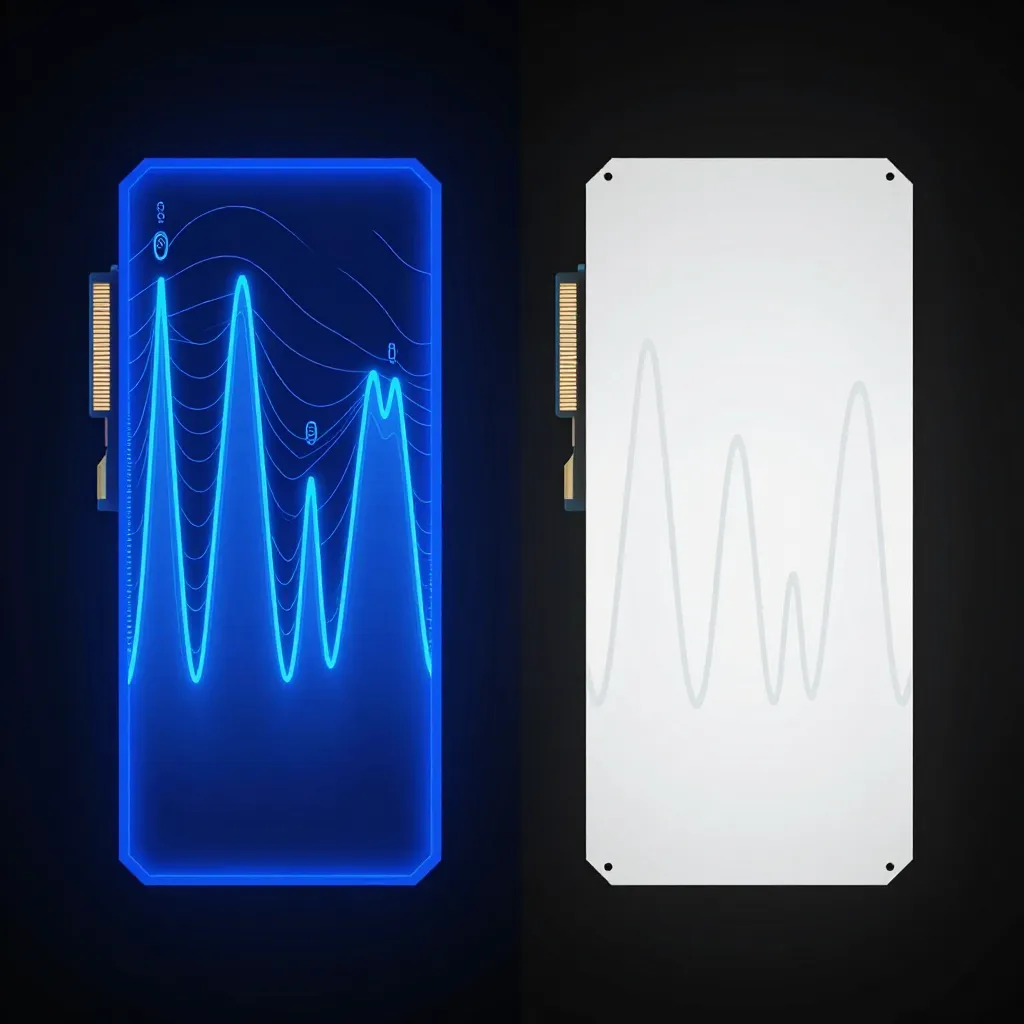
The goal of undervolting is to find the lowest voltage at which your card remains stable, or to simply cap the maximum power it can draw. This reduces heat and noise without significantly impacting your throughput.
Using power limits can cut GPU heat for local inference with only small losses in tokens per second. Power limiting is an easy, reversible method to optimize efficiency for AI workloads without sacrificing performance.
For those using the newest hardware, YouTube creator ImWateringPSUs notes that undervolting remains one of the best optimization options for the RTX 5000 series.
Why This Matters for Your Lab
In our own environment, we monitor GPU health closely to avoid thermal throttling. We’ve seen instances where GPU monitoring goes blind due to exporter failures, but when the data is live, the difference between a card idling at 35°C and one hitting its thermal threshold is massive.
When you’re operating in a “basement lab” setting, you don’t have enterprise rear-door heat exchangers. You have a room that gets hot very quickly. By capping your power draw, you:
- Reduce Thermal Throttling: A cooler card is less likely to aggressively downclock itself mid-inference.
- Lower Noise: Your fans don’t need to spin at maximum RPM to keep the silicon from melting.
- Extend Hardware Life: Sustained high temperatures are the enemy of longevity.
Implementation Strategy
If you are running local LLMs, VRAM is your primary currency–as we discussed in The 32GB Threshold. Undervolting doesn’t take away your VRAM; it just changes how much power the chip uses to process the data within that memory.
Start by applying a power limit (e.g., 80% of TDP) using your preferred GPU utility. Monitor your tokens per second during a standard inference task. In most cases, you’ll find that the drop in speed is negligible, while the drop in temperature and fan noise is immediate.
Optimizing your hardware is just as important as optimizing your model quantization. By shifting the focus from raw clock speeds to thermal efficiency, you can maintain a high-performance local AI stack without turning your office into a sauna.